
One issue came up in our conversations with customers that we hadn’t even thought of ourselves: QR codes expiring. A customer first emailed me saying, “My QR code won’t scan.” We thought the QR code on the business card might have been damaged, so we quickly asked him to send us a photo to check whether it was a printing problem on our end. But the QR code in the photo was clear. The phone could read the link; the website just wouldn’t open. The photo gave us a useful answer: the printed code was readable, so the problem was with the link opening after the scan. The checks below explain how to identify the cause before deciding whether the cards need to be reprinted.
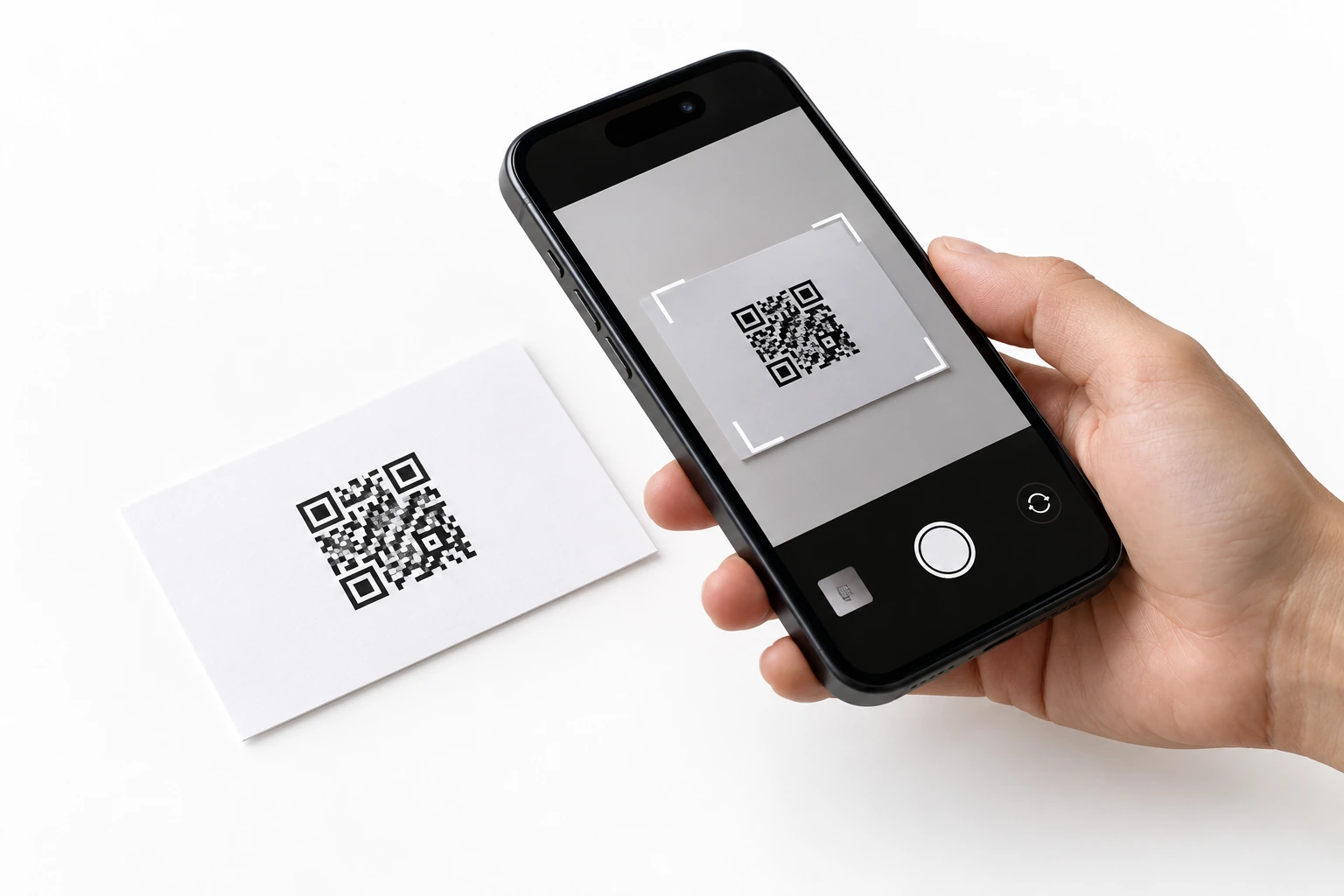
It’s Not the Code on the Card That’s Expired. It’s the Service in Between.
There are two common types of QR codes used to open websites.
One stores your website address directly. Scan it, and you go straight to your website. This is called a static QR code. Think of it as turning your website address into an image. Someone scans it and reads your address, without a QR code platform having to send them somewhere else first.
The other stores an “intermediate address.” Scan it, and you go to the QR code platform first. The platform then sends you to your website. This is called a dynamic QR code. The good thing is that you can change the final destination in your account even after the cards have been printed. The downside is that if the platform stops the service, that middle step breaks.
With some free tools, dynamic QR codes get deactivated as soon as the trial ends. Scanning takes you to a notice from the platform, not your website. So your business card isn’t damaged, and your website isn’t the problem either. It’s that link in the middle that’s stopped working.
That’s why scanning it before printing and seeing that “it opens” doesn’t prove the code will keep working long-term.
First, Is It Not Scanning, or Is It Scanning but Not Opening?
When something goes wrong, look at what actually happens on the phone before trying to find the cause.
If the phone doesn’t recognize anything, first check whether the code is printed clearly, whether it’s big enough and whether there’s blank space around it. Then try another phone.
If the phone recognizes it but shows something like “deactivated” or “trial ended,” that’s an issue with the QR code platform. Check the platform and the account.
If the phone recognizes it but your own webpage shows an error or won’t open, check the address or the website.
Keep these three situations separate. If you’re already getting a deactivation notice, printing the card darker or making the QR code bigger won’t do a thing. The problem isn’t on the paper.
The Business Cards Are Already Printed. Now What?
Check two things first.
First, what address is actually stored in the QR code? Check more than the website that opens at the end. A redirect can land on your website without your own address being the one stored in the code. Ask someone who knows about websites to read the original content of the QR code and see whose address it is. If that feels too complicated, I’d say don’t spend your time struggling with it yourself. Just ask whoever made the QR code in the first place.
Second, who generated it, and who has access to the account? It might be you, a designer or a colleague. Find that account and check whether it’s a dynamic code, whether there’s a trial period, and whether the plan has any restrictions.
Once you know what’s wrong, deal with that specific problem.
If the platform has deactivated the link, ask whether it can restore the code that’s already printed on your cards. You can ask directly: “I need to restore the QR code already printed on my business cards, not create a new one. Can the original link be reactivated, and what would that require?” Confirm that it can be restored before deciding whether to pay.
If the code contains your own website address and the page has simply moved, don’t rush to replace the code. Have whoever manages your website redirect the old address to the new page.
If the old link can’t be restored and you don’t plan to keep using that platform, then look at replacing the physical codes. For cards you haven’t handed out, you can reprint them or cover the old code with opaque labels. But try a few first. Check whether the old code is completely covered, whether there’s enough blank space around the new one, and whether it scans properly. For cards you’ve already handed out, changing the file on your computer won’t make them update themselves.
Can a Different Generator Bring the Old Code Back?
No. Generating another code just gives you a new code. The old one printed on your business cards still contains the original intermediate address. That doesn’t change. Don’t see “free” or “permanent” on a new tool and assume that uploading the old image will let it take over another platform’s link.
So How Do You Avoid an Expired QR Code on Your Custom Business Cards?
If all you need is for people to open your website, just use a static QR code. Your address is stored directly in the code, without relying on a QR code platform’s redirect service. That way, you don’t have to worry about the platform switching your code off when a trial ends. Your own website still needs to work, though. Don’t let the domain expire or delete the page.
Where do you get a static QR code? There are plenty of free options online, such as QRCode Monkey, goQR.me and Adobe Express’s QR code tool. Use their basic URL generators, enter your own full website address, and you’ll get a static code. Choose the static URL option; the dynamic-code and scan-tracking options beside it can put you back on a platform-dependent service.

Google Chrome’s built-in generator works too. This is the easiest option. On your computer, open the webpage you want to make a QR code for, click the three dots in the top-right corner, find “Cast, save, and share,” then click “Create QR code” and download it. If you can’t find it, have a look at Google’s official instructions.
 support.google.com
If the downloaded image is too small to use, just send us the QR code and the website address it points to. We’ll help you prepare a clear file suitable for printing. If you can download a vector file such as an SVG, keep the original file.
Once you’ve generated it, how do you check that it’s static? Download it and look at the full address actually stored in the code, not just the website that opens at the end. A dynamic code can also land on your own website after redirecting, so that alone won’t tell you. If you can’t work it out, ask whoever generated it: is the address stored directly in the code, or does it go through a platform first? If you only need to open your website, avoid a dynamic code when you don’t need one.
If you might want to change the content later, you can keep a fixed address on your own website, such as yourbrand.com/card. Point the code on your business card to that address. Later, you can update the page or set up a redirect without changing the card.
If you actually need the platform’s features, such as scan tracking, you can use a dynamic code. But ask before printing: who manages the account, do you have to keep paying, who deals with any restrictions, and how long are you planning to use the cards? These platforms aren’t going to bring all this up themselves. Often, they let you use it for free at the start. Then the time runs out and you’re scrambling. By then, they’ve got the upper hand.
Another option is a chip instead of a printed code: paper NFC business cards.
Check One More Time Before Printing
Besides checking that “it scans,” check “what it opens.” Test with the final file, the actual size and the paper you’ve chosen. Scan it with a few different phones, and have someone who isn’t logged into the account try opening the page too. Once the cards are printed, pick a few from the finished batch and test again. Test the printed cards as well as the on-screen file. Leave a blank border at least four small squares wide around the QR code. Don’t squeeze it down too small or push it right up against another design element just to make the layout work.
 qrcode.com